What's New in Foodini 2.0
Foodini 2.0 brings a redesigned interface and a new set of features. This page is a short tour of what changed. Nothing you already know how to do has gone away — the screens are clearer, and there are some genuinely new things, starting with nutrition.
Nutritional information for your ingredients
Foodini can now look up nutritional data for an ingredient and store it alongside the printing parameters. Type a food name, tap SEARCH, and pick the closest match — the fields fill in for you.
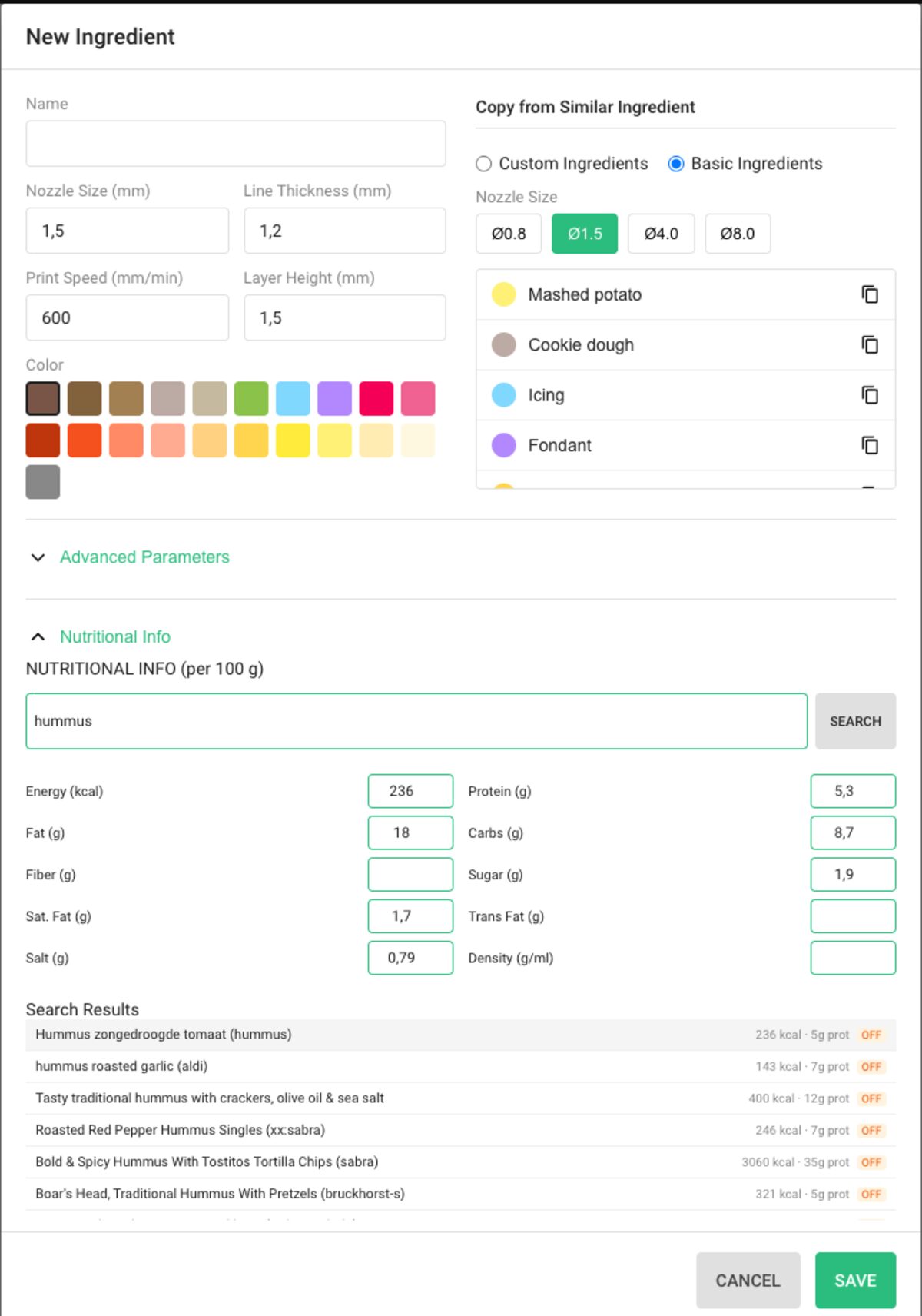
Values are always per 100 g, and every one of them is editable. If the search result is close but not exact — your recipe, your supplier, your batch — correct the numbers and they are what Foodini keeps.
The fields are:
- Energy (kcal), Protein, Fat, Carbs, Fiber, Sugar, Sat. Fat, Trans Fat and Salt — the figures you would find on a label.
- Density (g/ml) — how heavy the ingredient is for its volume. This is what lets Foodini turn the volume of a printed dish into a weight, and from there into the nutrition of the dish in front of you.
Searches run against two public food databases: Open Food Facts and the USDA food database. Each result is labelled with which one it came from, so you can judge how much to trust a given entry before accepting it. Packaged supermarket products are usually found in Open Food Facts; raw and basic ingredients are usually better described by the USDA entries.
Available wherever you define an ingredient
Nutrition is part of the ingredient itself, so you can fill it in from either place you work with ingredients:
- In Custom Ingredients, when you create or edit one of your own — open Nutritional Info at the bottom of the dialog.
- In a recipe, by tapping a capsule and choosing NUTRITION.
Filling it in once is enough. Every dish that uses the ingredient picks it up from then on.
See Custom Ingredients for how to create your own ingredient from one of the ready-made presets.
Ethernet, and faster Wi‑Fi
Foodini can now be connected to your network with an Ethernet cable as well as over Wi‑Fi. Plug the cable in and Foodini picks the wired connection up on its own — there is nothing to configure, and the address it is using is shown in Settings.
A cable is worth using in a kitchen where Wi‑Fi is crowded or the signal is weak, and in commercial installations where a wired connection is simply more predictable.
Wi‑Fi itself is faster: Foodini now supports Wi‑Fi 5 (802.11ac) on both the 2.4 GHz and 5 GHz bands. The 5 GHz band is usually far less congested than 2.4 GHz, which makes uploading dishes and checking for updates quicker and more reliable.
Setting up Wi‑Fi works the same way as before: see Connect Foodini to Wi-Fi and Update Software (Foodini 2.0).
Recipe Builder: describe a dish, get a recipe
The Foodini Recipe Builder is a companion tool that runs in your browser at aiforge.naturalmachines.com. Describe the dish you want in your own words and it builds a printable recipe for you, which saves starting from a blank plate every time.
To use it, open the page and connect it to your printer: SCAN NETWORK finds a Foodini on the same network, or you can type its address in by hand. There is also a cloud simulator if you want to try the tool before printing anything.
Under AI Model you can choose how much thinking to spend on a request — Fast, Balanced or Powerful. Fast is fine for simple shapes; Powerful is worth the extra wait for something more elaborate.
Faster, smoother printing
Foodini 2.0 runs on new electronics with a faster processor, and prints noticeably quicker than before. Movement between shapes is smoother too, which shows up most on dishes with many separate pieces.
Nothing about your existing dishes needs to change to benefit from this — print them as they are.
Automatic plate measurement
When you print onto your own plate or tray, Foodini no longer needs you to measure its height by hand. On the print screen, choose Automatic… as the printing surface and Foodini measures the surface itself before printing.
Manual entry is still there if you prefer it, or if a surface is too dark or too reflective to measure reliably — choose Custom… and type the height. See Custom Printing Surface.
Sleep and power off from the screen
The power button beside the door now offers two choices: put Foodini to sleep, which turns the screen off until you touch it again, or power off completely.
Full details, and what to expect when starting up again, are in Turning Foodini off and putting it to sleep.
Redesigned screens
The main screens have been rebuilt to be easier to read at arm's length and easier to use with wet or gloved hands. Two of them have their own guides:
- Dish Gallery (Foodini 2.0) — finding, filtering and sorting your dishes.
- Signing in to Foodini — signing in with or without a cloud account.
Printer status now names what a capsule bay is actually doing, and when a print cannot start, Foodini tells you which bay is the problem instead of reporting a generic failure.