Custom Ingredients
Custom Ingredients is where the ingredients you have saved are kept. Foodini also comes with a set of ready-made ingredients you can start from, which is usually the quickest way to add your own.
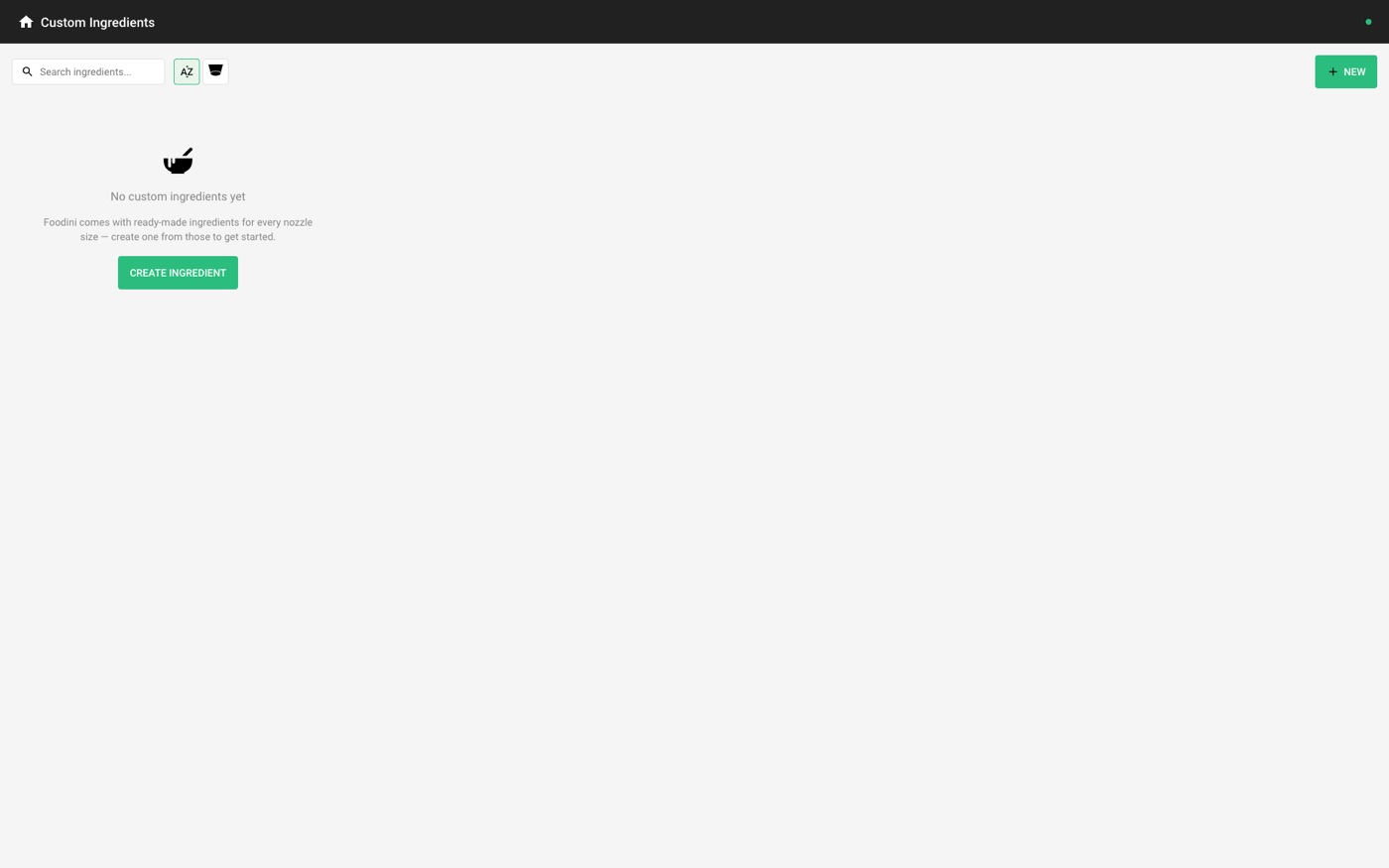
Why the list starts empty
This screen shows only the ingredients you have saved, so it is empty on a new account. It does not mean Foodini has no ingredients — ready-made ones for every nozzle size are built in, and you reach them when creating.
Creating from a ready-made ingredient
Tap + NEW (or CREATE INGREDIENT). The dialog opens on Basic Ingredients, listing the built-in ones for the nozzle size you choose.
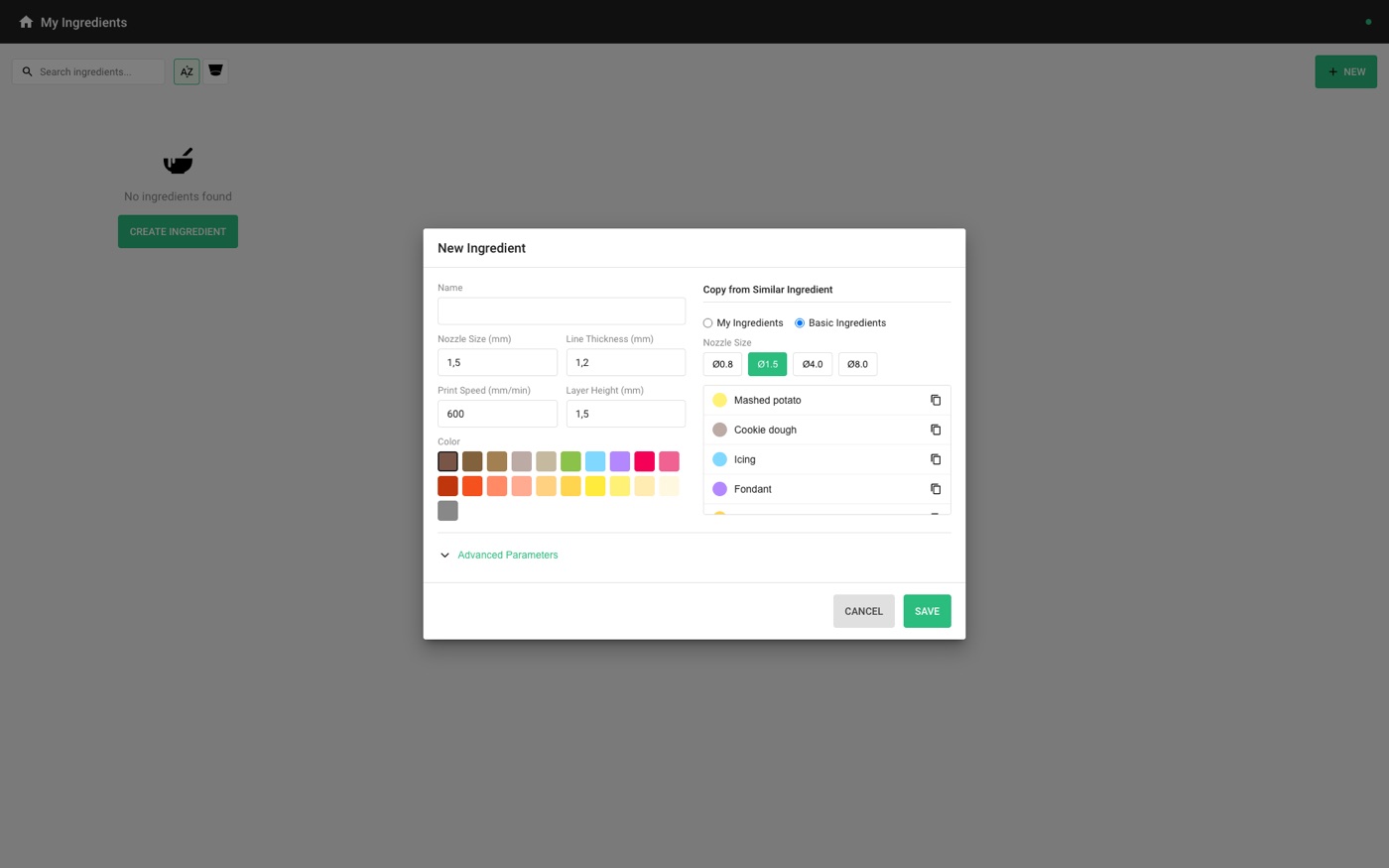
Pick a nozzle size, then tap the copy icon beside an ingredient such as Mashed potato or Cookie dough. Its printing settings are copied across, ready for you to name and adjust. Switch to Custom Ingredients to copy from one of your own instead.
Give it a name and tap SAVE.
Working with saved ingredients
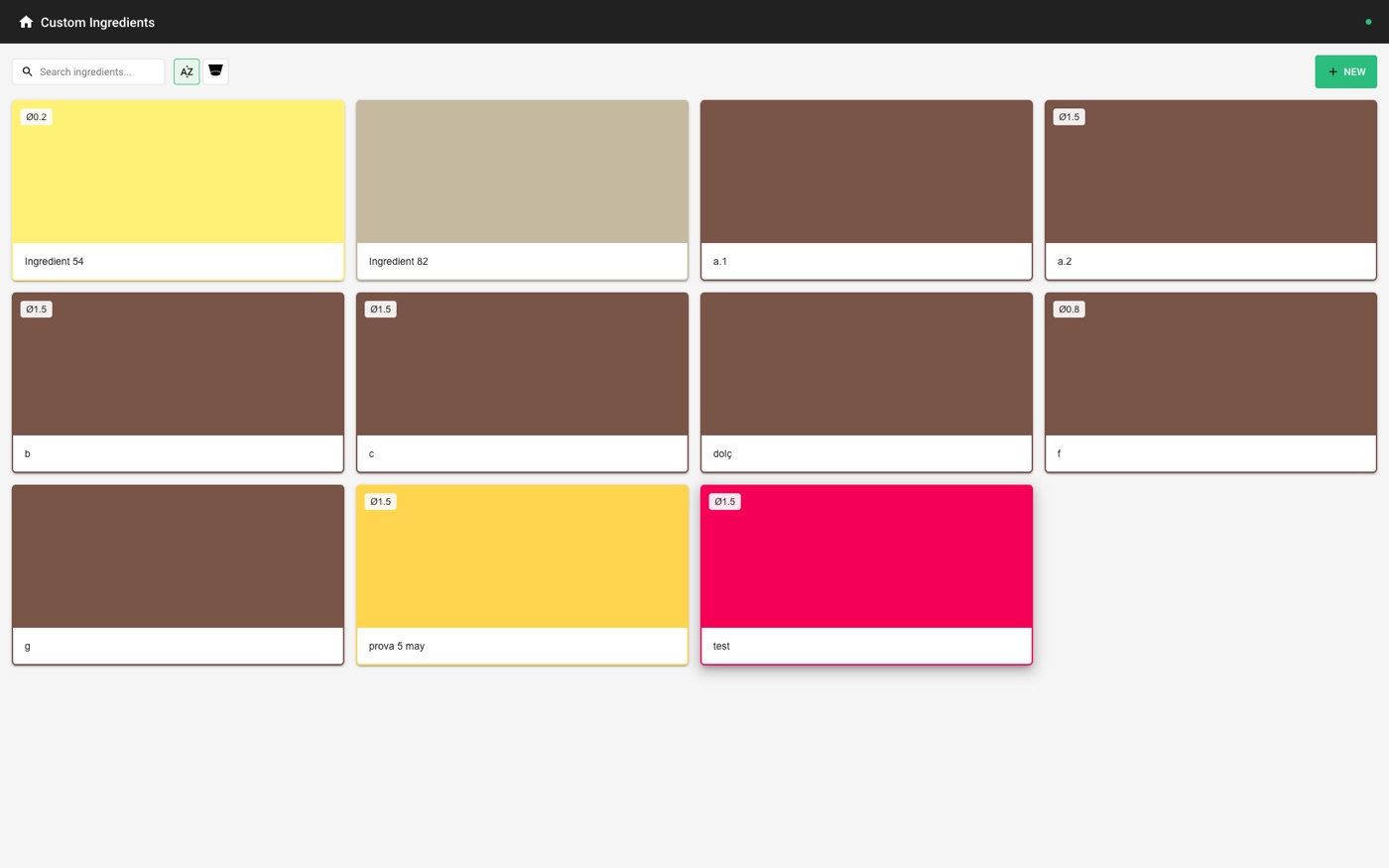
Each card shows the ingredient colour and its nozzle size. Tap once to select, twice to edit. With one selected you can edit or delete it from the buttons at the top.