Dish Gallery (Foodini 2.0)
The Dish Gallery is where all your dishes live. Open it from Recipes on the home screen. This page explains how to find a dish, and what the controls along the top do.
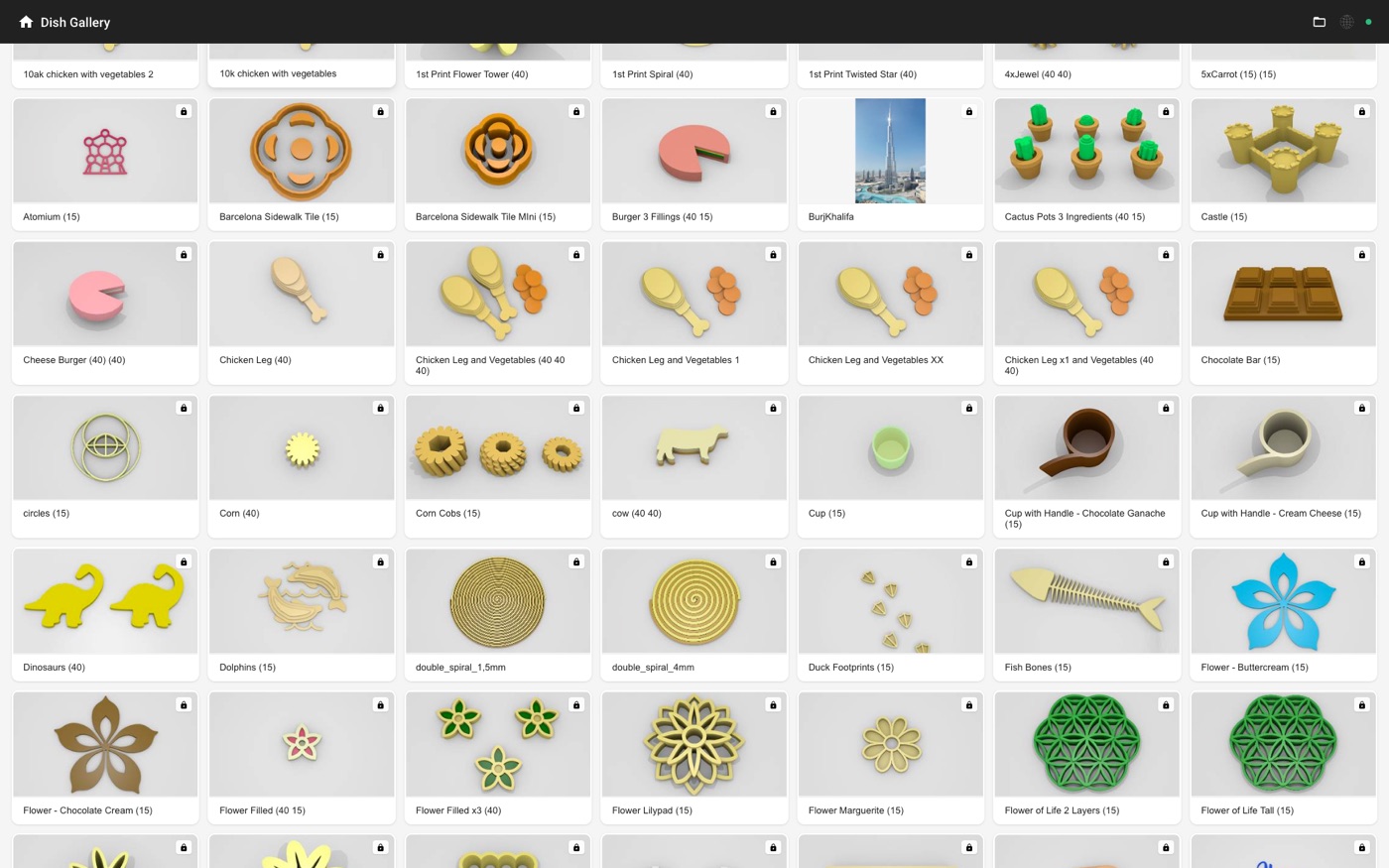
Finding a dish
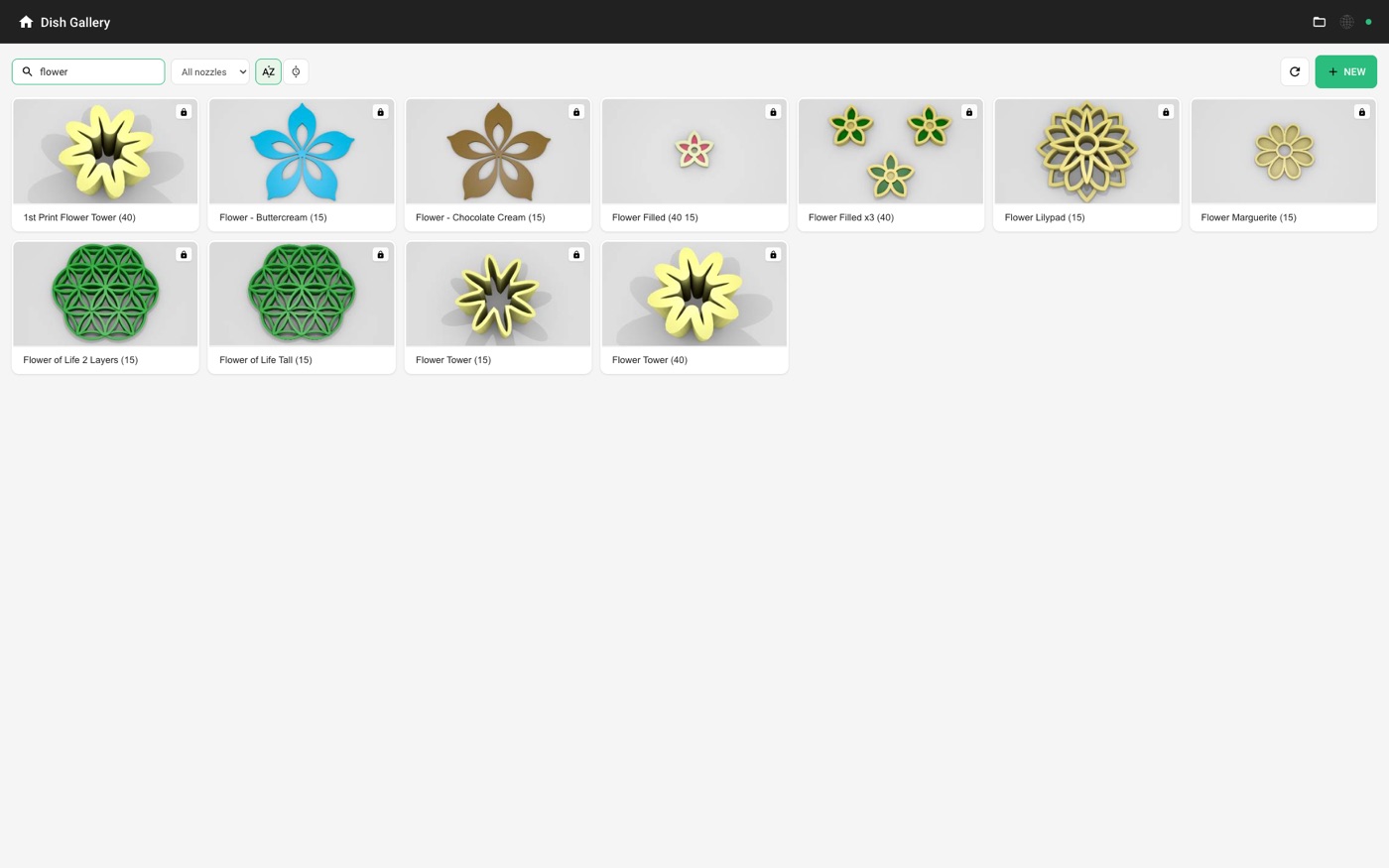
Type in the Search dishes box to filter by name. The gallery narrows as you type, so you do not need to press anything to search.
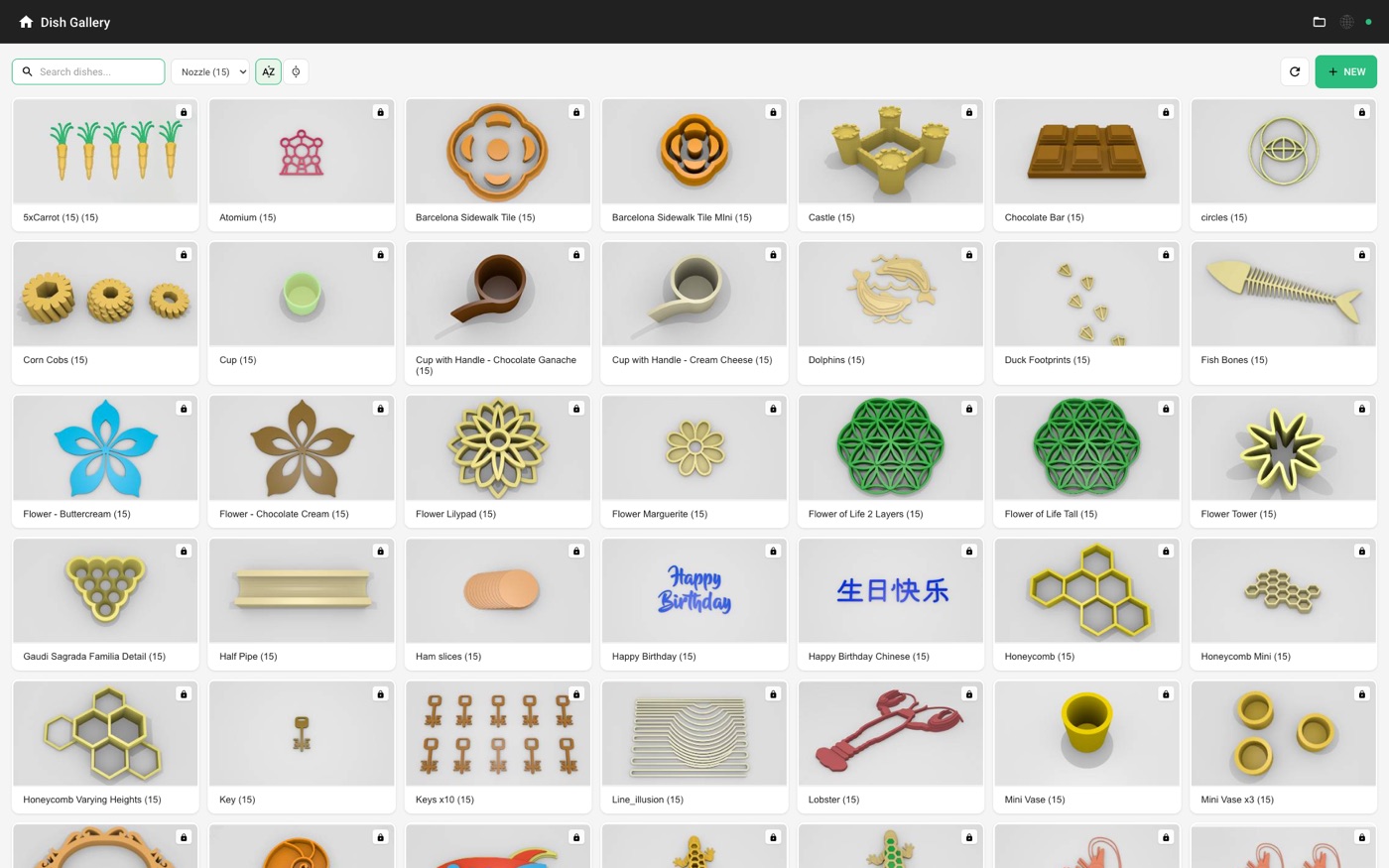
Filtering by nozzle
The All nozzles menu limits the gallery to dishes made for one nozzle size. This is useful when you already have a nozzle fitted and only want to see dishes you can print right now.
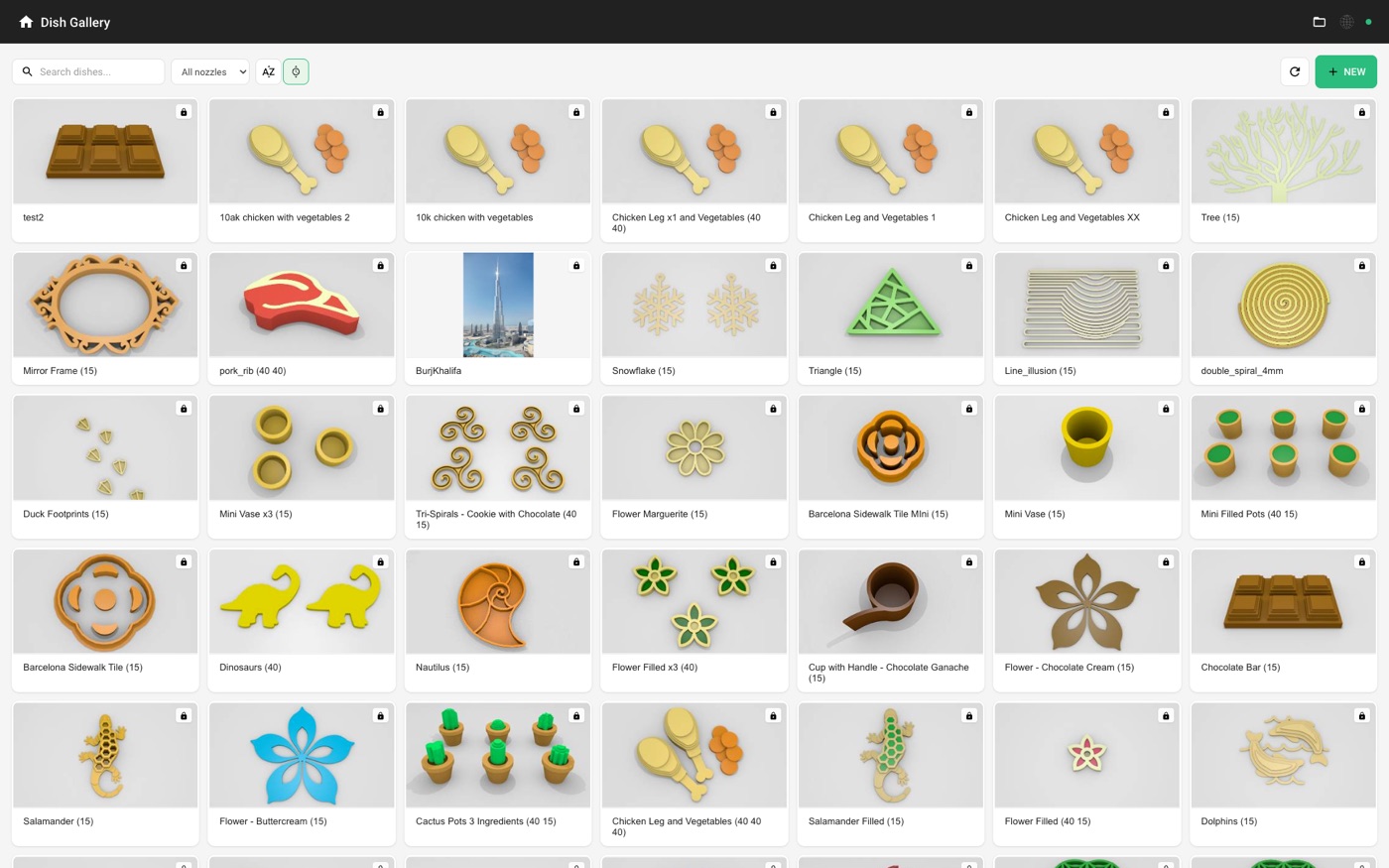
Sorting the gallery
Two buttons sit next to the nozzle menu:
- A–Z sorts alphabetically by name.
- Clock sorts by date, newest first — the quickest way back to something you were working on.
Selecting and opening a dish
Tap a dish once to select it. Tap it twice to open it in the editor.
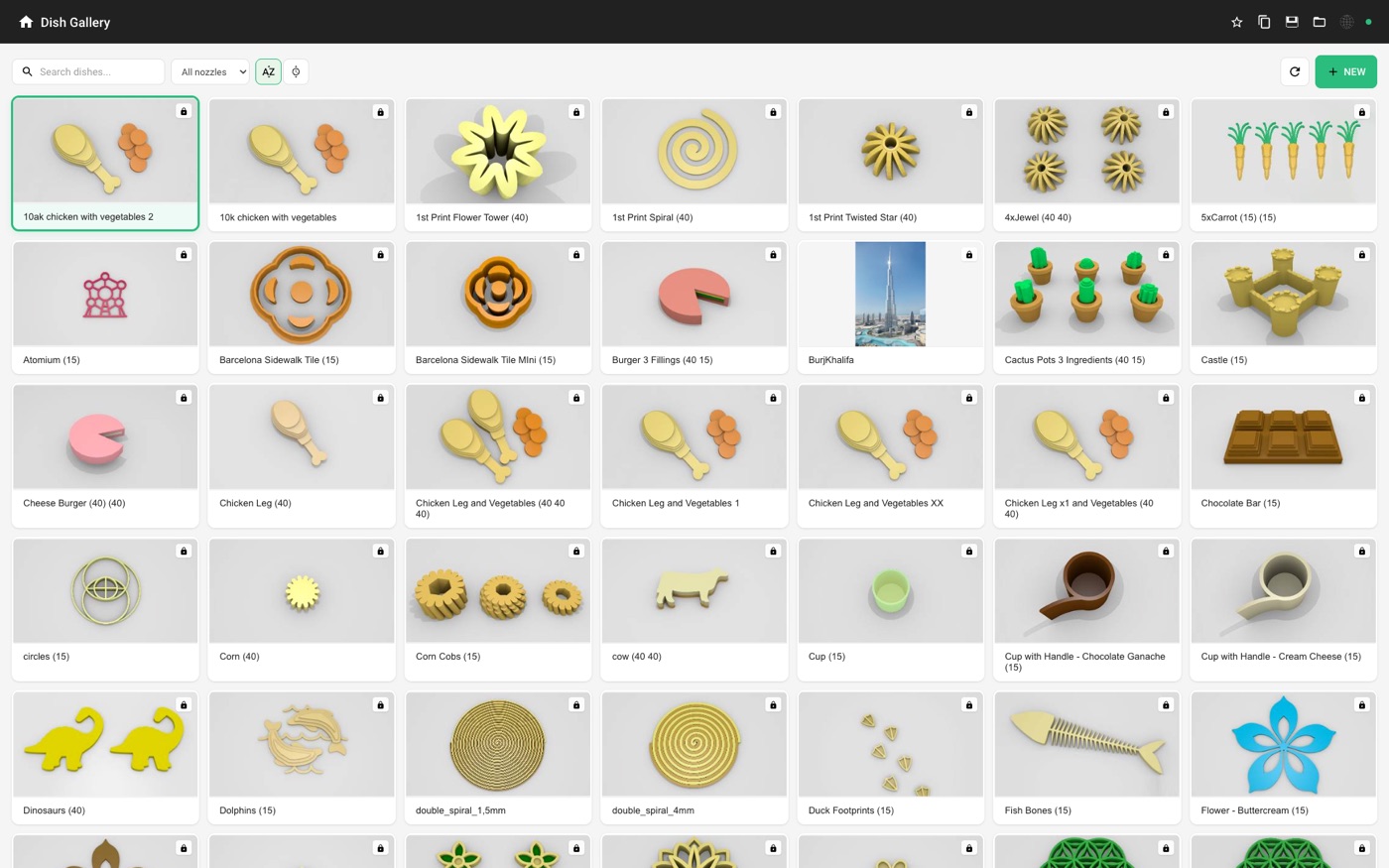
A small padlock on a dish means it is part of the built-in library and cannot be changed. You can still print it, or open it and save your own copy under a new name.
Making a new dish
+ NEW, at the top right, opens the editor with an empty plate.
The circular arrow beside it refreshes the gallery, which is worth using if a dish you expect to see has not appeared yet.