Turning Foodini off and putting it to sleep
Foodini can either go to sleep, which just turns the screen off, or switch off completely. The two are very different, so this page explains what each one does and how to bring Foodini back.
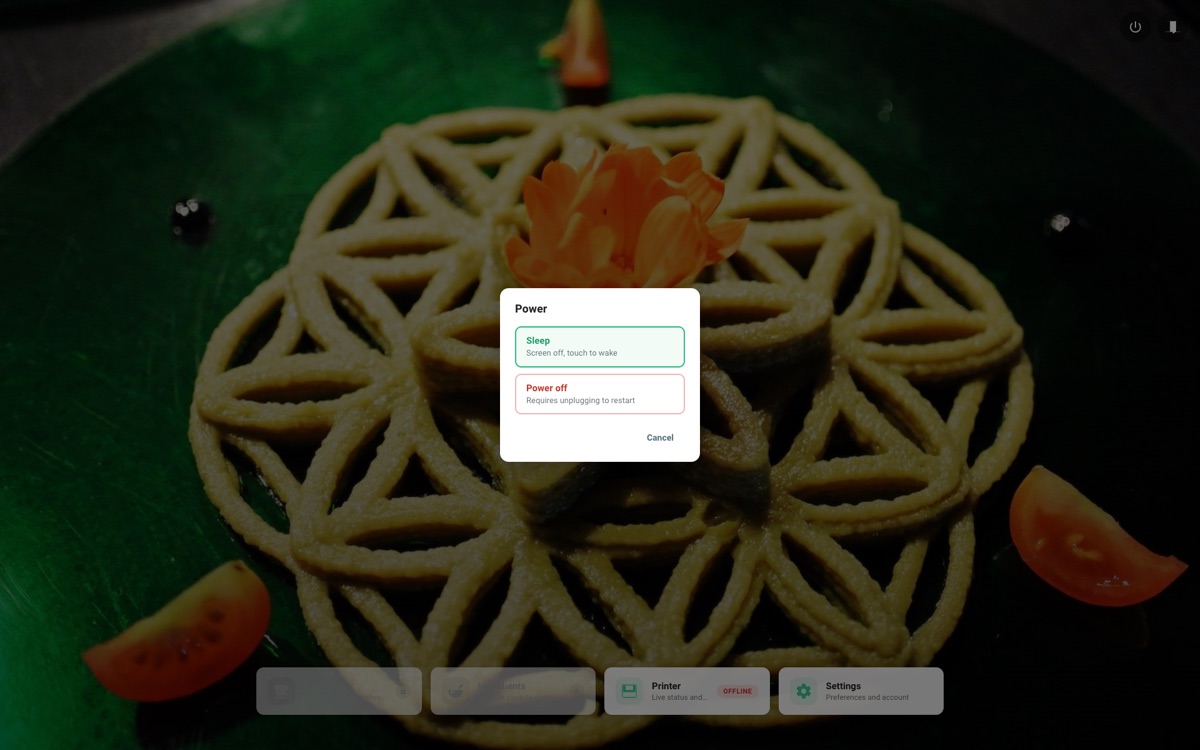
Opening the power menu
The power button is at the top right of the home screen, next to the door button.
Tapping it opens the power menu. Nothing happens until you choose an option, and tapping outside the menu closes it again.
Sleep — screen off, touch to wake
Sleep turns the screen off. Foodini stays switched on: it keeps its network connection, keeps any capsules warm, and remains reachable from the app.
To wake it again, touch the screen. Wait a moment first — touches in the first second after the screen goes dark are ignored, so that lifting your finger off the Sleep button does not wake it straight back up.
Use Sleep at the end of the day, or any time you want the screen dark but Foodini ready to use.
Power off — requires unplugging to restart
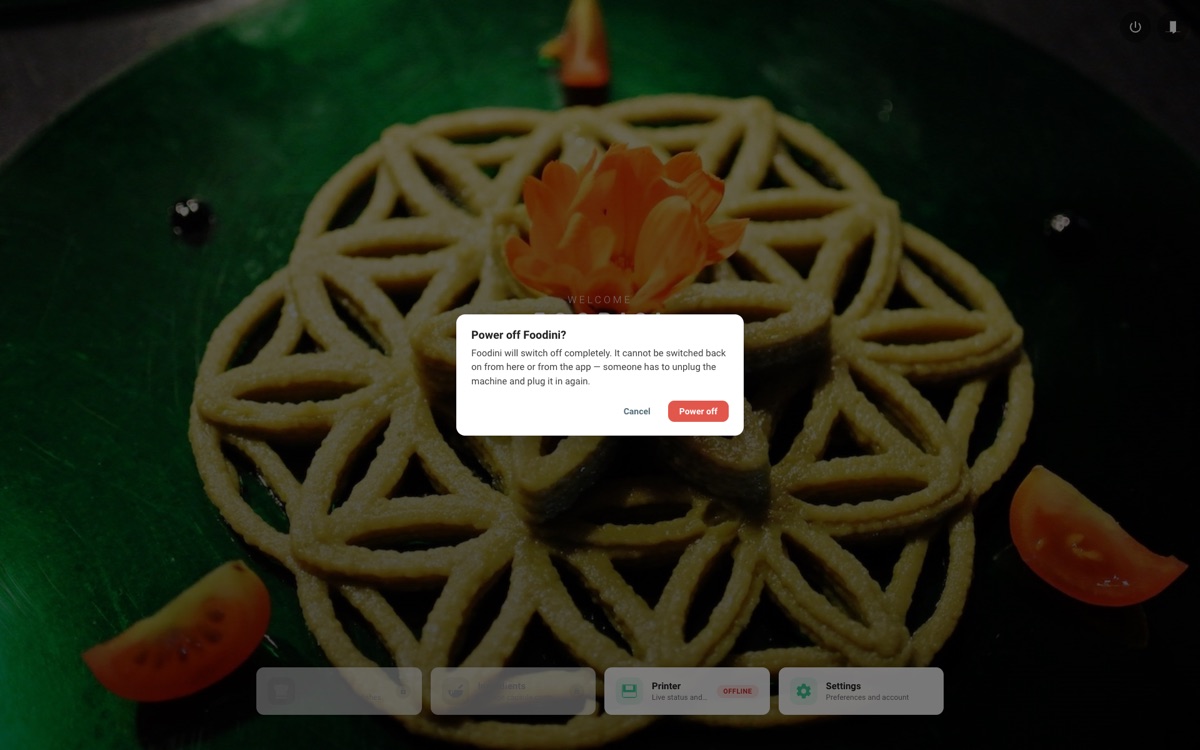
Power off switches Foodini off completely, the same as a computer shutting down.
There is no way to switch Foodini back on from the screen or from the app. Once it is off, the touchscreen is off with it, so someone has to go to the machine, unplug it from the mains and plug it in again.
Because of that, Power off asks you to confirm before it does anything. If you tap Power off by mistake, choose Cancel and nothing will happen.
Only use Power off when you genuinely need Foodini switched off — for example before moving it, or before leaving it unused for a long period. For everyday use, choose Sleep instead.
Which one should I use?
- Finished cooking for now, want the screen dark → Sleep
- Leaving Foodini overnight or over a weekend → Sleep
- Moving Foodini, or storing it away → Power off
- Told to switch it off by support → Power off
If you are unsure, choose Sleep. It is always recoverable from the screen.