Connect Foodini to Wi-Fi and Update Software (Foodini 2.0)
Foodini works without an internet connection: dishes and ingredients already on the machine print as normal. You need a connection to sign in with a cloud account, to sync your dishes, to search for nutritional information, and to receive software updates. This page covers connecting to Wi-Fi, using a network cable, and how updates work.
Connecting to Wi-Fi
- On the home screen, tap Settings. The Account tab opens.
- Find the Network card. It shows the network Foodini is connected to, or Not connected.
- Tap SCAN. The networks Foodini can see are listed with the strongest signal first. A padlock means the network needs a password.

- Tap your network, type its password, and tap CONNECT. For a network without a password, just tap CONNECT.
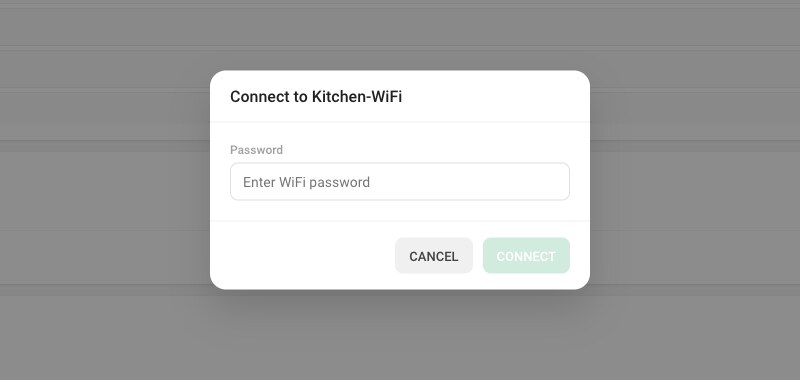
After a few seconds the Network card shows the name of your network and Foodini's address on it. If you see Failed to connect to network, check the password (it is case-sensitive) and try again.
When you set up a new Foodini, the setup wizard includes the same Wi-Fi step, so most machines are already connected by the time you reach Settings.
Using a network cable
Foodini can also connect with an Ethernet cable. Plug the cable in and Foodini uses the wired connection on its own; there is nothing to set up. A cable is worth using in a kitchen where Wi-Fi is weak or crowded.
Networks Foodini cannot join from the screen
- Hidden networks, which do not broadcast their name, do not appear in the list.
- Networks that ask you to sign in on a web page, as many hotels and guest networks do, will not give Foodini internet access.
For either, use a network cable, or connect Foodini to a phone's personal hotspot.
Software updates
Foodini updates itself; there is no update button. Once a day, while it is connected to the internet and not printing, it checks for new software and installs it. A machine that has been offline for a while checks shortly after it reconnects. Some updates take effect straight away, others the next time Foodini is switched on.
To see which versions are installed, go to Settings › Advanced › Software. If you contact support, these are the numbers they will ask for.

- Print Engine — the software in the printer's hardware controller.
- Foodini System — the software that runs the machine.
- Foodini App — the screens you use.
The simplest way to keep Foodini up to date is to leave it connected.