Settings (Foodini 2.0)
Tap Settings on the home screen. Settings has two tabs, Account and Advanced. On both, the Light and Door buttons at the top right switch the chamber light and open the door.
Account tab
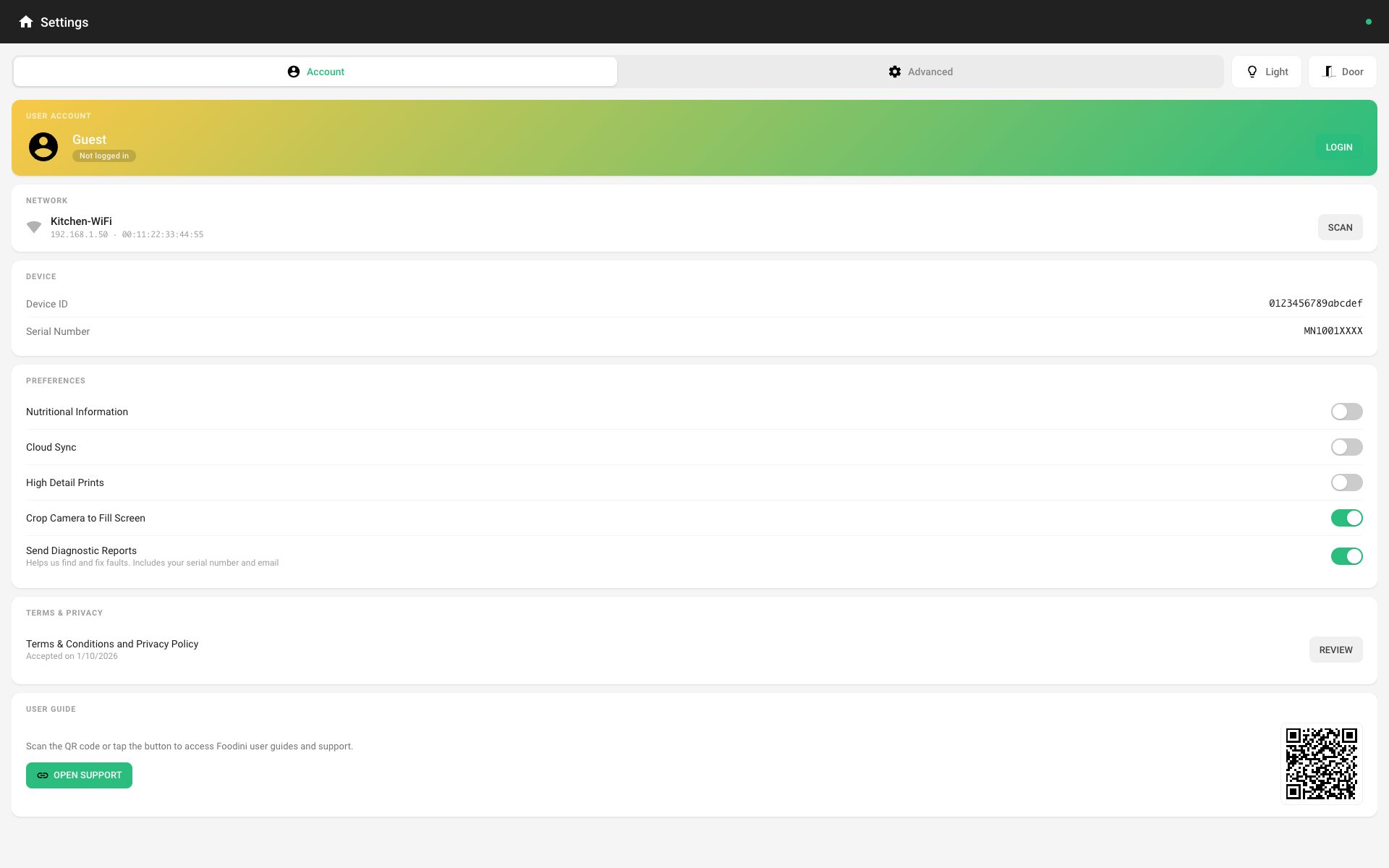
User Account
Shows who is signed in and whether it is a Cloud Account or a Local Account, with LOGIN or LOGOUT. See Signing in to Foodini.
Network
The network Foodini is connected to. Tap SCAN to choose a Wi-Fi network; see Connect Foodini to Wi-Fi and Update Software (Foodini 2.0).
Device
The Device ID and Serial Number identify your Foodini. Have them to hand when you contact support.
Preferences
- Nutritional Information — shows nutrition throughout Foodini: the nutritional values of each ingredient, and, in print preview, the Nutrition Facts of the whole dish beside the dish picture, worked out from how much of each ingredient the dish uses. It is on unless you switch it off; switching it off hides nutrition everywhere.
- Cloud Sync — keeps a copy of your dishes in your cloud account, so they are there when you sign in on another Foodini. Needs a cloud account and an internet connection.
- High Detail Prints — adds more points to each print for finer detail. Prints take longer. Most useful with the smaller nozzles.
- Crop Camera to Fill Screen — makes the camera picture fill its frame, trimming the top and bottom edges, instead of showing the whole picture with bars at the sides.
- Send Diagnostic Reports — sends error reports and usage information, including your serial number and account email, so Natural Machines can find and fix faults. You can switch it off at any time; Foodini works the same either way.
Terms & Privacy
Shows when the Terms & Conditions and Privacy Policy were accepted on this Foodini. Tap REVIEW to read them again.
User Guide
Scan the QR code with your phone, or tap OPEN SUPPORT, to reach this help center.
Advanced tab
Most of the Advanced tab is set correctly at the factory. Change these settings only when you know you need to, or when Natural Machines support asks you to.
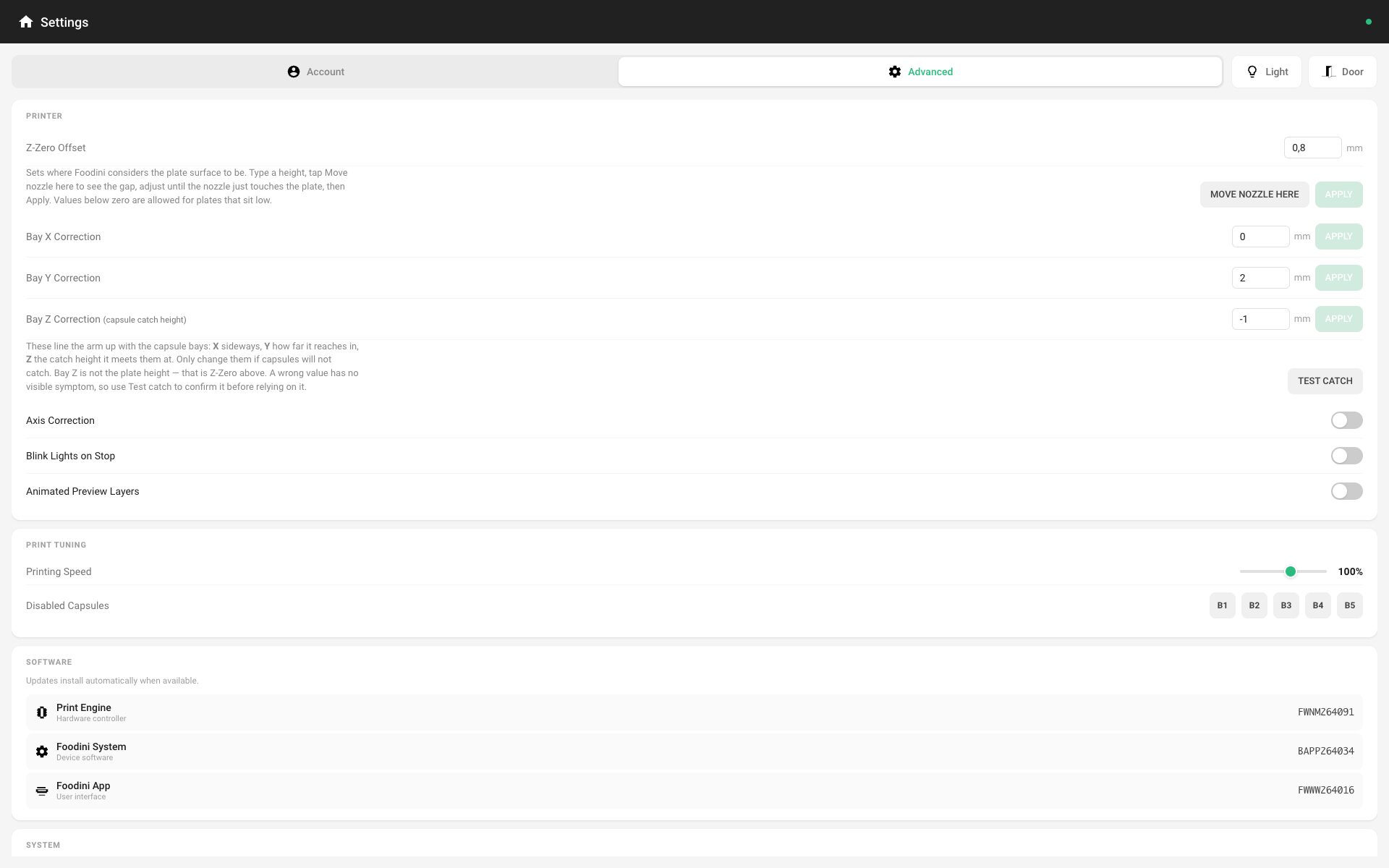
Printer
- Z-Zero Offset — where Foodini considers the surface of the Foodini plate to be. To check it, type a height and tap MOVE NOZZLE HERE: the nozzle moves to that height so you can see the gap. Adjust until the nozzle just touches the plate, then tap APPLY. Values below zero are allowed for plates that sit low. Keep your hands out of the machine while the nozzle moves. For other plates and surfaces, see Printing on Your Own Plate (Foodini 2.0).
- Bay X, Y and Z Correction — line the arm up with the capsule bays: X sideways, Y how far it reaches in, Z the height at which it catches a capsule. Change them only if capsules will not catch, and use TEST CATCH to confirm a new value before relying on it. Bay Z is not the plate height; that is Z-Zero.
- Axis Correction — applies a correction for the plate's levelness measured during factory calibration. Leave it as it is unless support asks you to change it.
- Blink Lights on Stop — when a print finishes or pauses, the chamber light blinks to catch your attention in a busy kitchen. It stops when you press Light or start another print.
- Animated Preview Layers — the print preview animation builds the dish one layer at a time, numbering each layer, instead of drawing it line by line.
Print Tuning
- Printing Speed — sets Foodini's top printing speed. At 100% it is 150 mm/s; it can be set from 63% (about 94 mm/s) to 125% (about 188 mm/s). It only affects ingredients set to print faster than that; see Print Speed and Layer Height Ranges (Foodini 2.0).
- Disabled Capsules — tap B1 to B5 to tell Foodini not to use that capsule bay, for example while a bay is out of service.
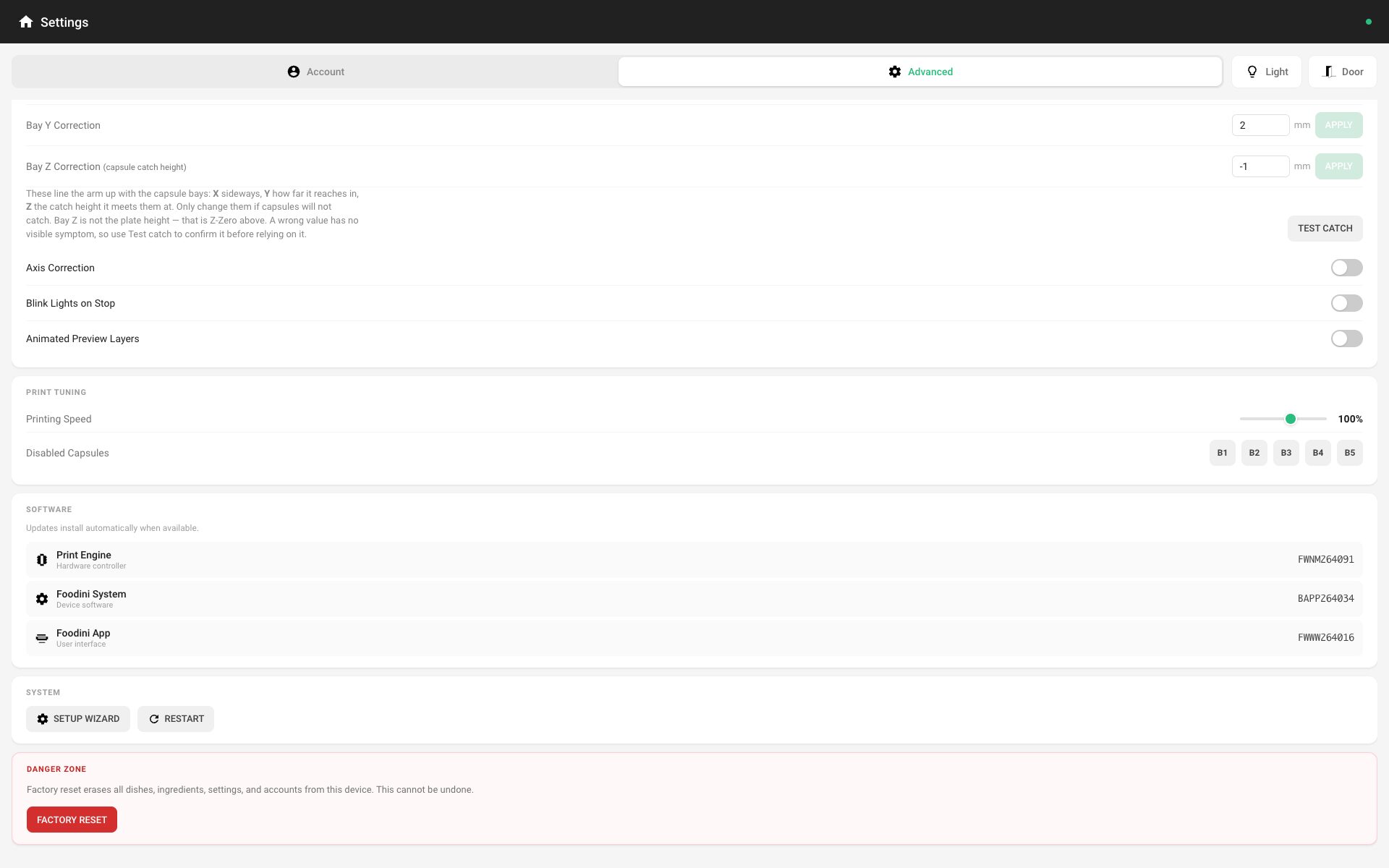
Software
The software versions installed on this Foodini. Updates install automatically; see Connect Foodini to Wi-Fi and Update Software (Foodini 2.0).
System
- SETUP WIZARD — runs the first-time setup again: language, country, Wi-Fi, date and time, and the rest.
- RESTART — restarts Foodini's software and printer controller. This is not a factory reset; nothing is erased.
Danger Zone
FACTORY RESET erases all dishes, ingredients, settings and accounts from this Foodini. Foodini asks you to confirm twice. It cannot be undone.