Printing and the Printer Page (Foodini 2.0)
The Printer page shows what Foodini is doing, lets you follow and control a print, and shows the capsules in their bays. Open it from Printer on the home screen; Foodini also opens it when you start a print.
While printing
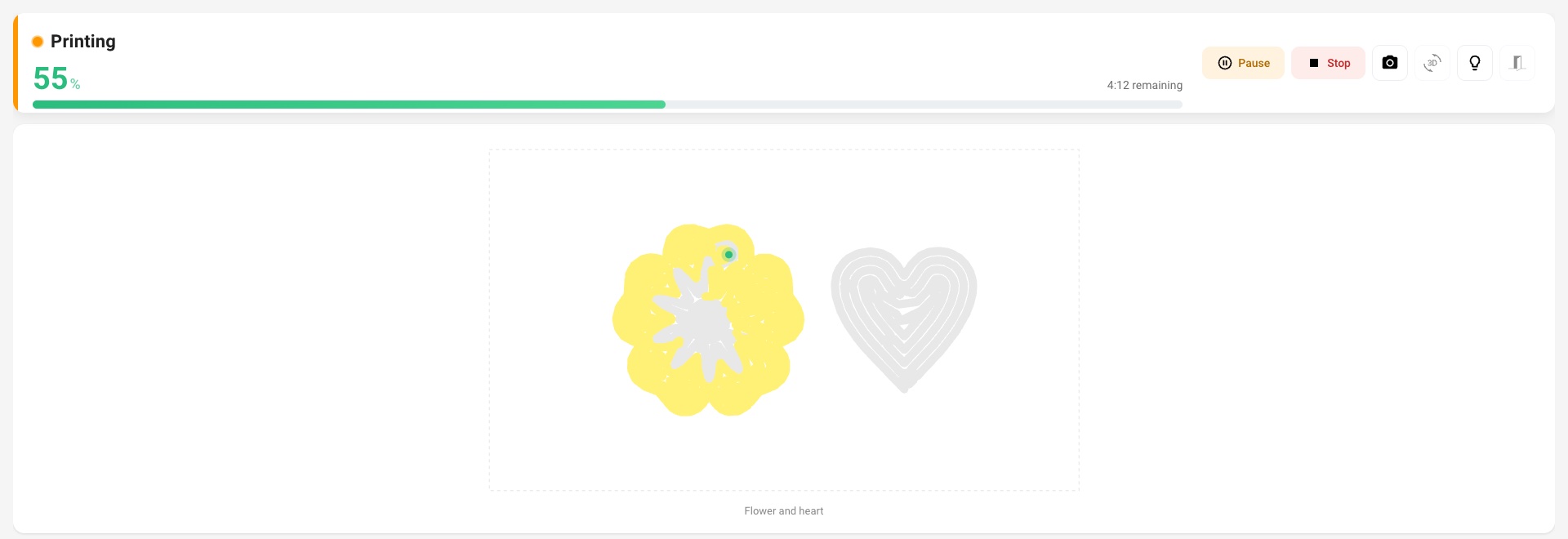
- Progress — how much of the print is done, the time remaining, and a progress bar.
- The dish filling in — every path of the dish is drawn faintly, and the parts already printed fill in with their ingredient's colour as Foodini prints them. The green dot shows where the nozzle is now. (If you started the print from another device, or the screen was restarted during the print, you see the picture of the dish instead.)
- Pause / Resume — pauses the print and lets you carry on from the same point.
- Stop — ends the print. Foodini asks you to confirm.
- The camera button shows the live camera view inside Foodini; the light button switches the chamber light. The door can't be opened while printing.
Capsules
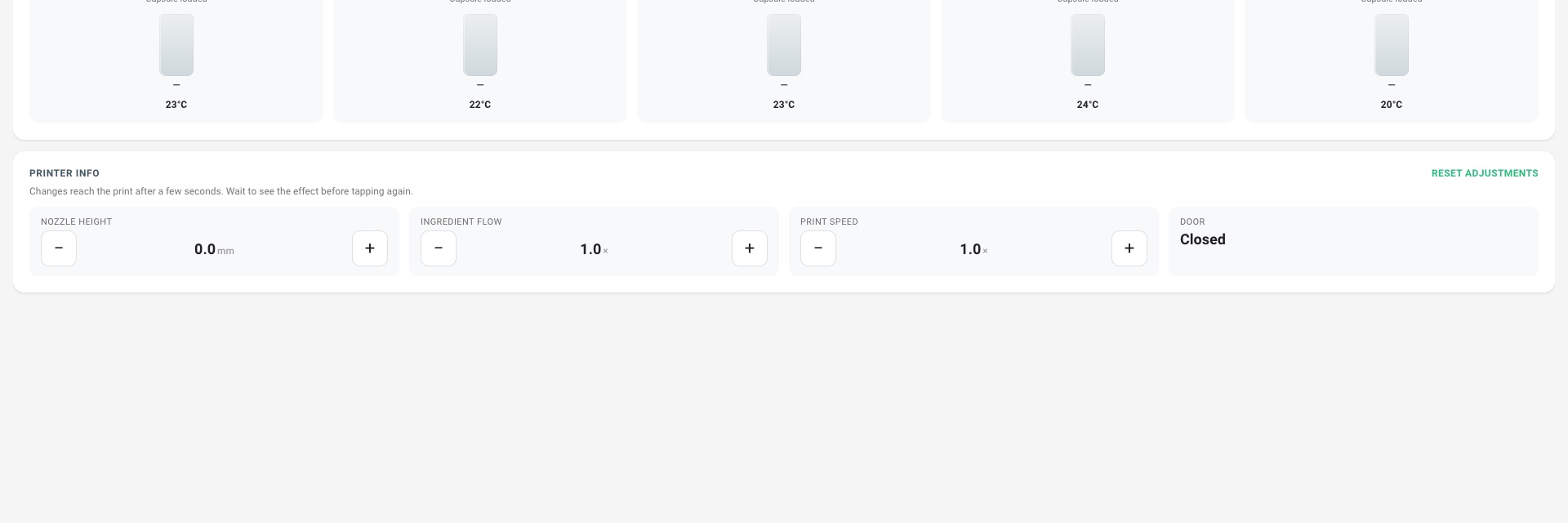
One card per capsule bay, B1 to B5, with the capsule's temperature and, while printing, how much ingredient is left. The capsule being printed with is marked Extruder. Tap a capsule to set the temperature Foodini should keep it at, for ingredients that need warming.
Printer Info: adjusting a print as it prints
If the first layers don't look right, you can correct them without stopping:
- Nozzle Height — raise the nozzle if it drags through the food or squashes it; lower it if the food doesn't stick to the plate.
- Ingredient Flow — more if the lines are thin or broken, less if they are too thick.
- Print Speed — slower for fine detail or ingredients that don't flow easily.
- RESET ADJUSTMENTS puts all three back to normal.
Changes reach the print after a few seconds, so wait to see the effect before tapping again. Door shows whether the door is open or closed.